Stay informed
Subscribe to our newsletter if you'd like to stay informed about Shoutem Extensions and Shoutem UI Toolkit.
Shoutem Cloud Storage is a CMS solution for mobile apps. It is optimized to be used within React Native apps with premade reducers and actions that are available in @shoutem/redux-io package. To describe model of your data on Shoutem Cloud Storage, you need to define a data schema:
$ shoutem schema add Restaurants
File `server/data-schemas/Restaurants.json` is created.
Folder data-schemas inside server folder was created with file Restaurants.json. Content of that file is following:
#file: server/data-schemas/Restaurants.json
{
  "title": "Restaurants",
  "properties": {
    "name": {
      "format": "single-line",
      "title": "Name",
      "type": "string"
    },
  },
  "titleProperty": "name",
  "type": "object"
}
This is for the first time that we used server folder for something. The reason is that data schemas are not part of the application code, but rather server side for extension. Data Schemas are nothing more than Shoutem-flavored JSON Schemas. At the end, there are some properties describing the schema itself.
This schema was immediately exported in extension.json file:
#file: extension.json
{
  "name": "restaurants",
  "version": "0.0.1",
  "title": "Restaurants",
  "description": "List of restaurants",
  "shortcuts": [{
    "name": "openRestaurantsList",
    "title": "Restaurants",
    "description": "Allow users to browse through list of restaurants"
    "screen": "@.RestaurantsList",
  }],
  "screens": [{
    "name": "RestaurantsList"
  }, {
    "name": "RestaurantDetails"
  }],
  "dataSchemas": [{
    "name": "Restaurants",
    "path": "server/data-schemas/Restaurants.json"
  }]
}
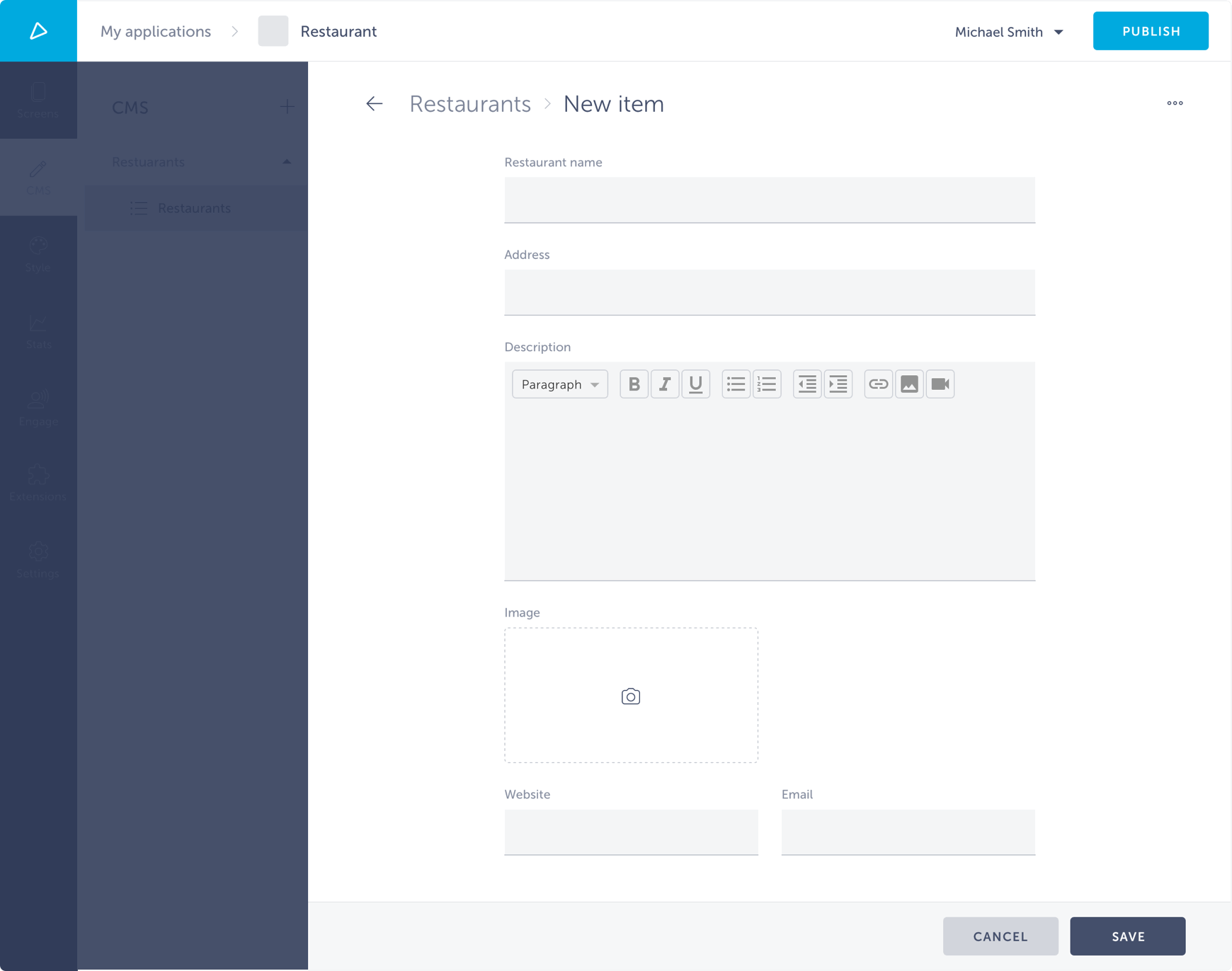
Let’s add now properties that we want to persist for a restaurant, such as: name, address, description, url, image and mail.
#file: server/data-schemas/Restaurants.json
{
  "title": "Restaurant",
  "properties": {
    "name": {
      "format": "single-line",
      "title": "Restaurant name",
      "type": "string"
    },
    "address": {
      "format": "single-line",
      "title": "Address",
      "type": "string"
    },
    "description": {
      "format": "multi-line",
      "title": "Description",
      "type": "string"
    },
    "url": {
      "format": "uri",
      "title": "Website",
      "type": "string"
    },
    "image": {
      "format": "attachment",
      "title": "Image",
      "type": "object",
      "referencedSchema": "shoutem.core.image-attachments"
    },
    "mail": {
      "format": "single-line",
      "title": "E-mail",
      "type": "string"
    }
  },
  "titleProperty": "name",
  "type": "object"
}
Now in order to enter data for your schema, you need to link your extension with Shoutem CMS settings page. Shortly, Settings Pages are web pages that you as developer can write to enable admins to manage your extension. They are shown inside Shoutem builder when admin clicks on the shortcut. In this example we’re using predefined Shoutem CMS settings page. Add Admin Page to openRestaurantsList shortcut and specify for which Data Schema you want to enter the data:
#file: extension.json
{
  "name": "restaurants",
  "version": "0.0.1",
  "title": "Restaurants",
  "description": "List of restaurants",
  "shortcuts": [{
    "name": "openRestaurantsList",
    "title": "Restaurants",
    "description": "Allow users to browse through list of restaurants",
    "screen": "@.RestaurantsList",
    "adminPages": [{
      "page": "shoutem.cms.CmsPage",
      "title": "Content",
      "parameters": {
        "schema": "@.Restaurants"
      }
    }]
  }],
  "screens": [{
    "name": "RestaurantsList"
  }, {
    "name": "RestaurantDetails"
  }],
  "dataSchemas": [{
    "name": "Restaurants",
    "path": "server/data-schemas/Restaurants.json"
  }]
}
Upload the extension:
$ shoutem push
Uploading `Restaurants` extension to Shoutem...
Success!
Go to Shoutem Builder. There you can see an empty settings page which allows you to add restaurants.
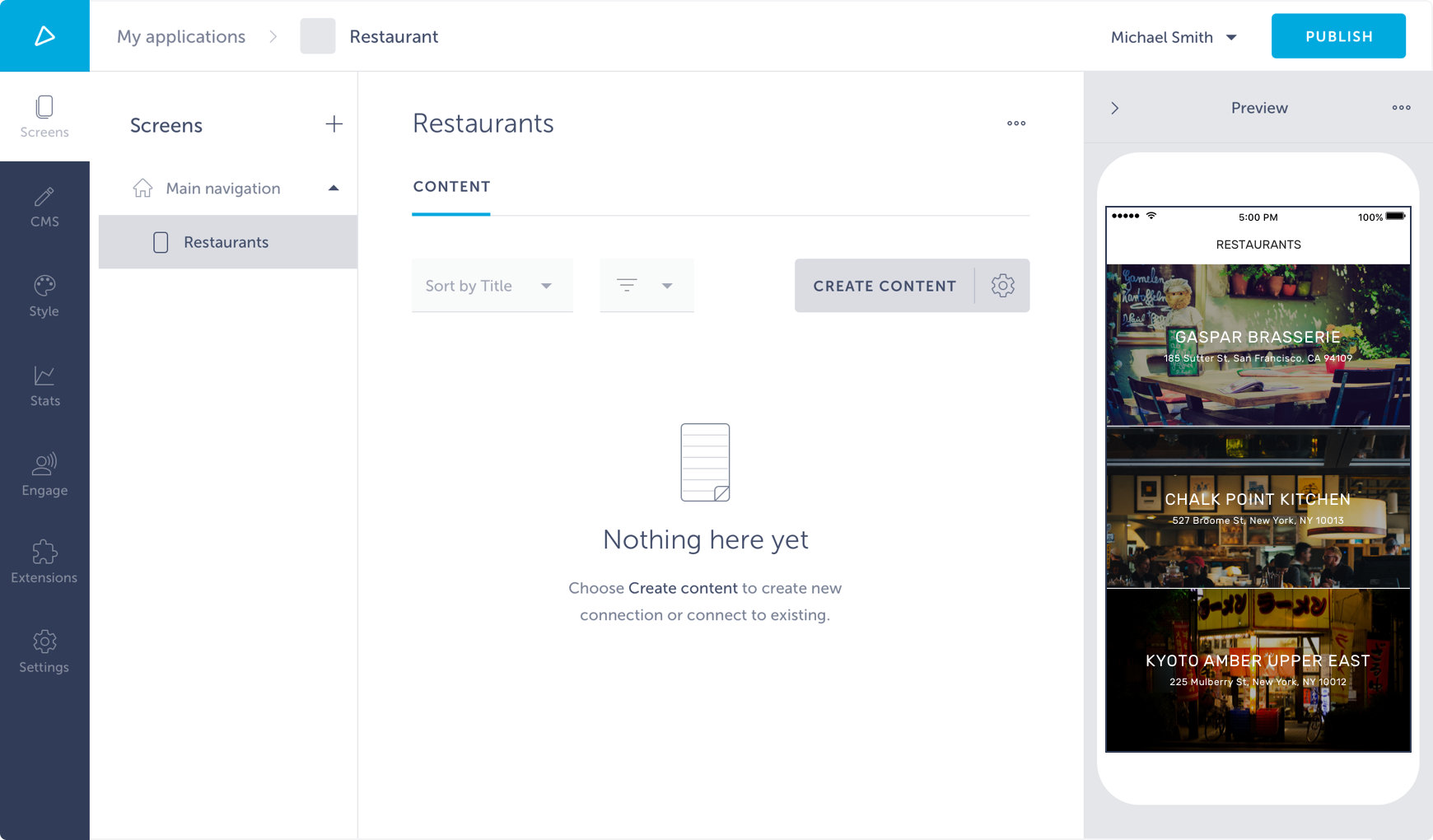
Click on Create content to start adding content. It will redirect you to CMS tab where you can manage content for that extension.
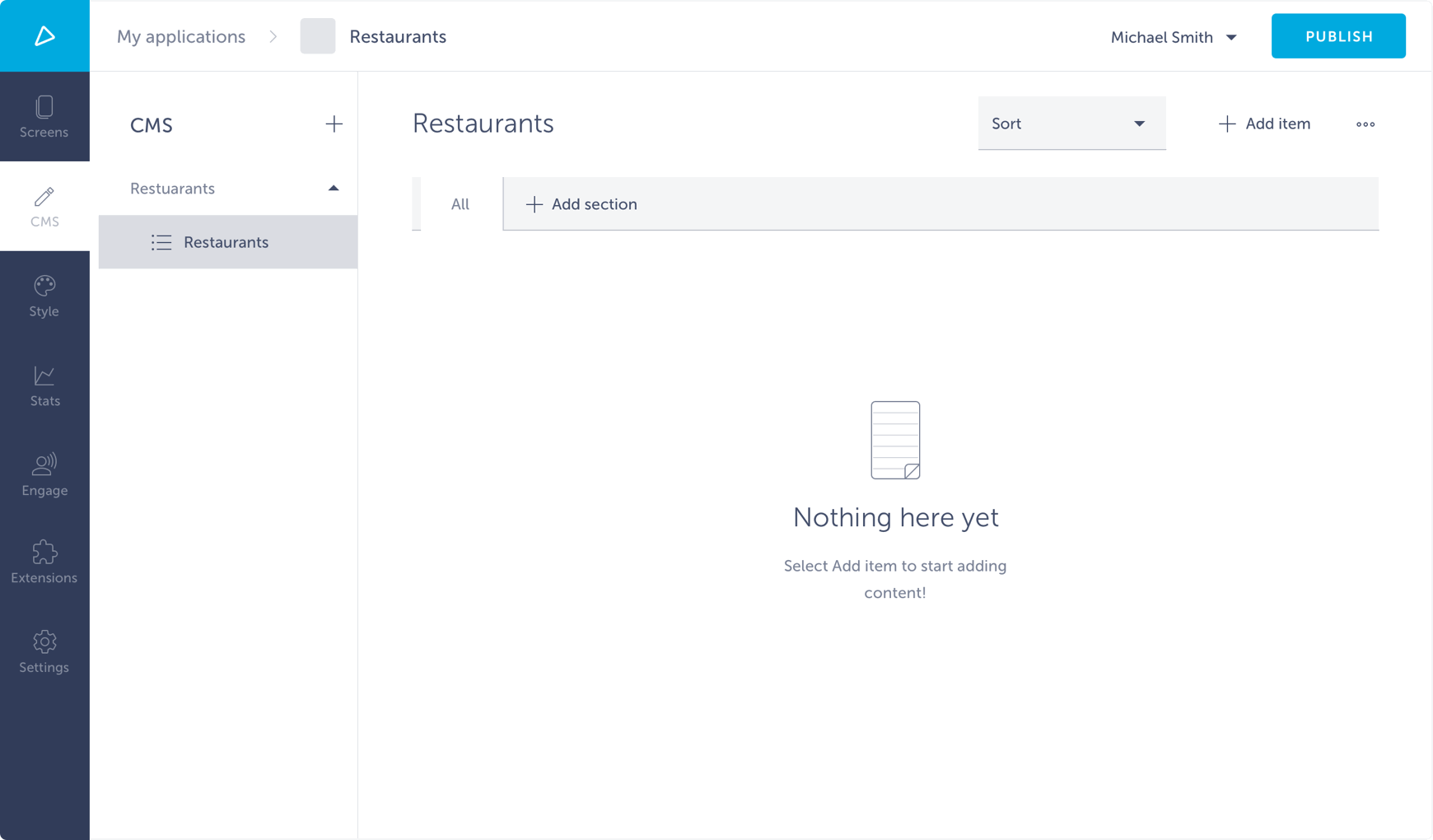
Click on Add item. This will open a modal for inserting data for Restaurants model, which you defined with your Data Schema.
Add some restaurants to the settings page.
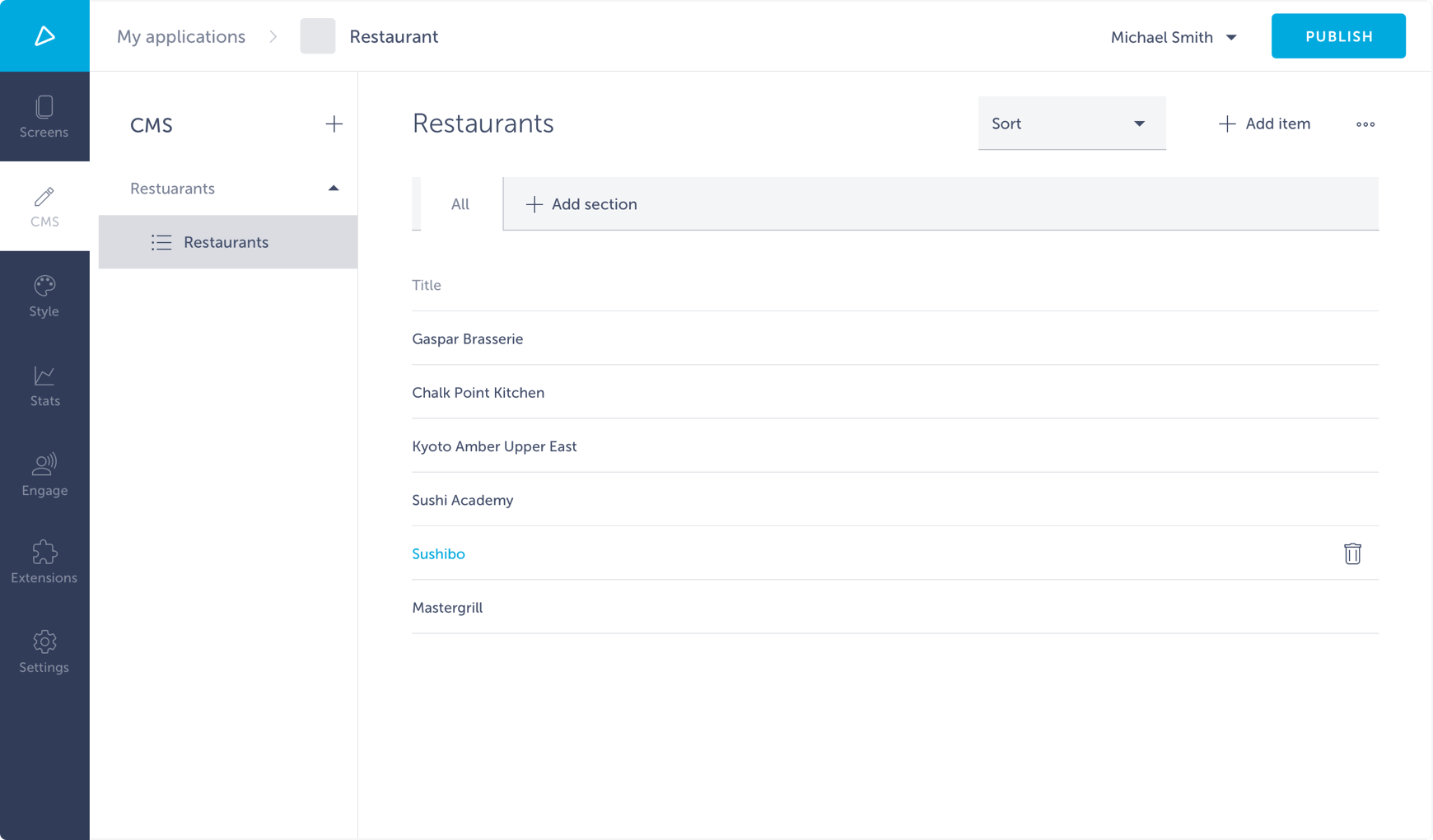
Although you’ve added them, your extension is still using static data. Let’s go to fetch the data from Shoutem Cloud Storage using @shoutem/redux-io package.